
Same Product Multipack
Turn One Product Into a Multipack
Repeat a single product image to create quantity promotions, multipacks, and multi-item visuals.
Before
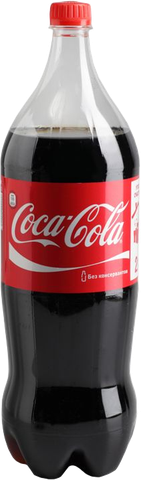
After
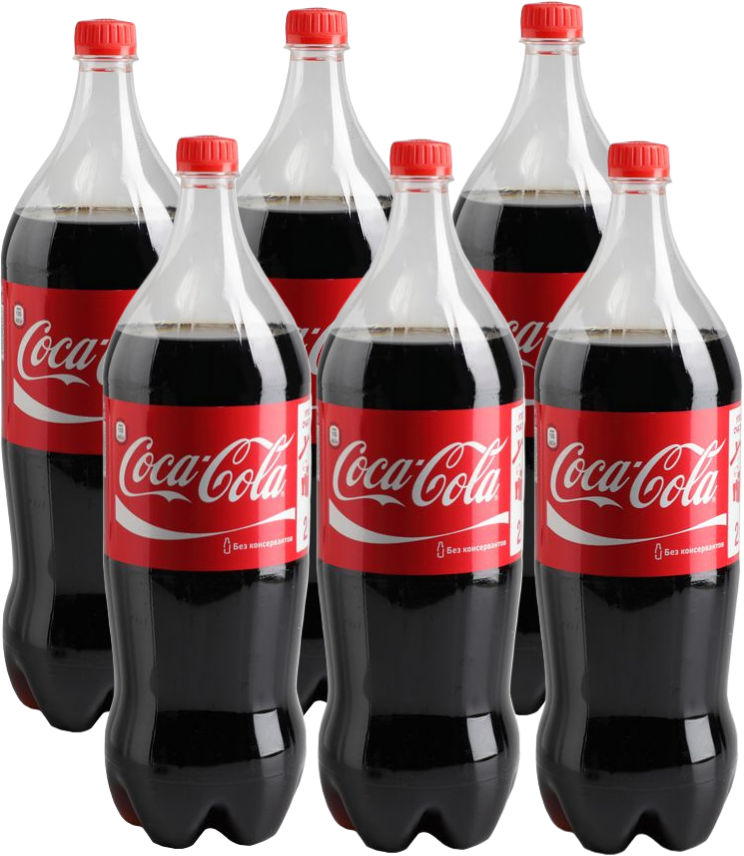
Bundle Composer
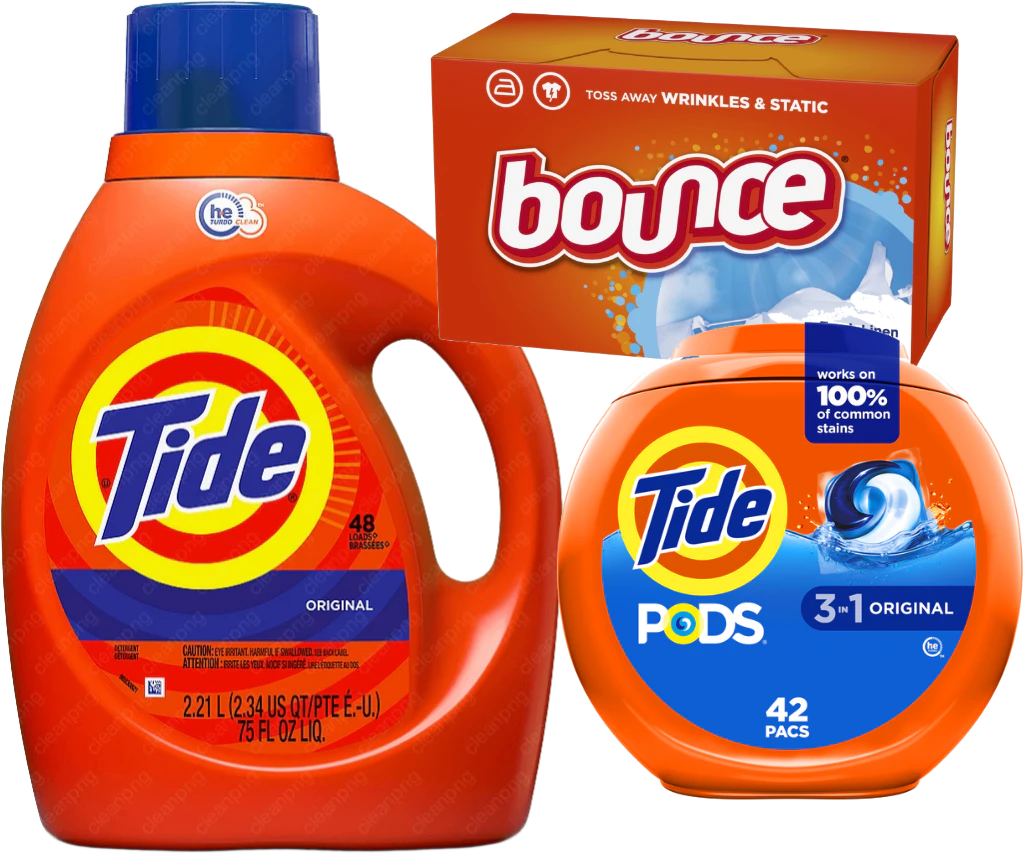
Remove backgrounds, arrange multiple products, and export one clean, transparent PNG for flyers, sale signs, digital promotions, and social media.
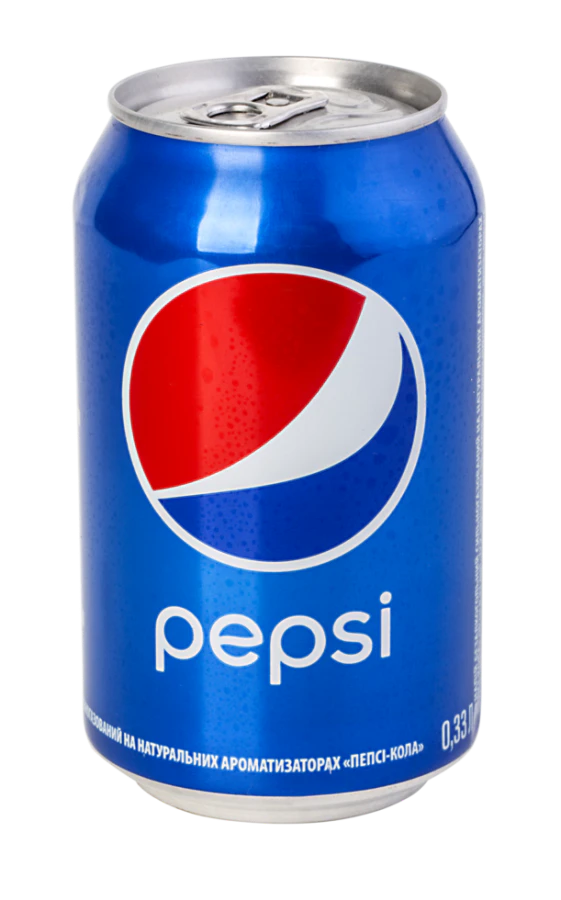
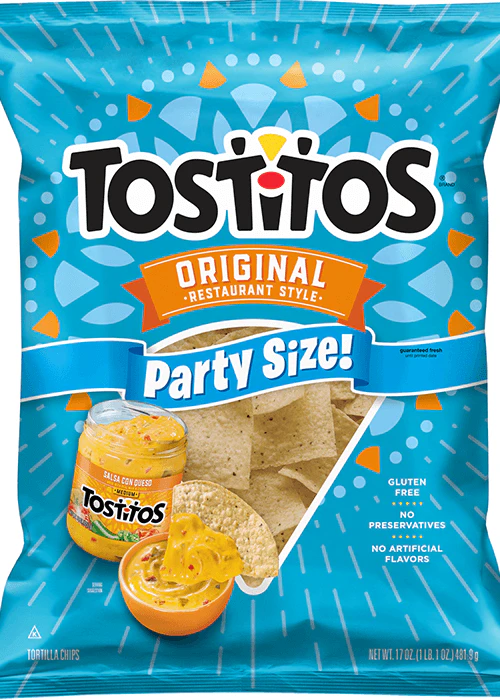
Separate product images
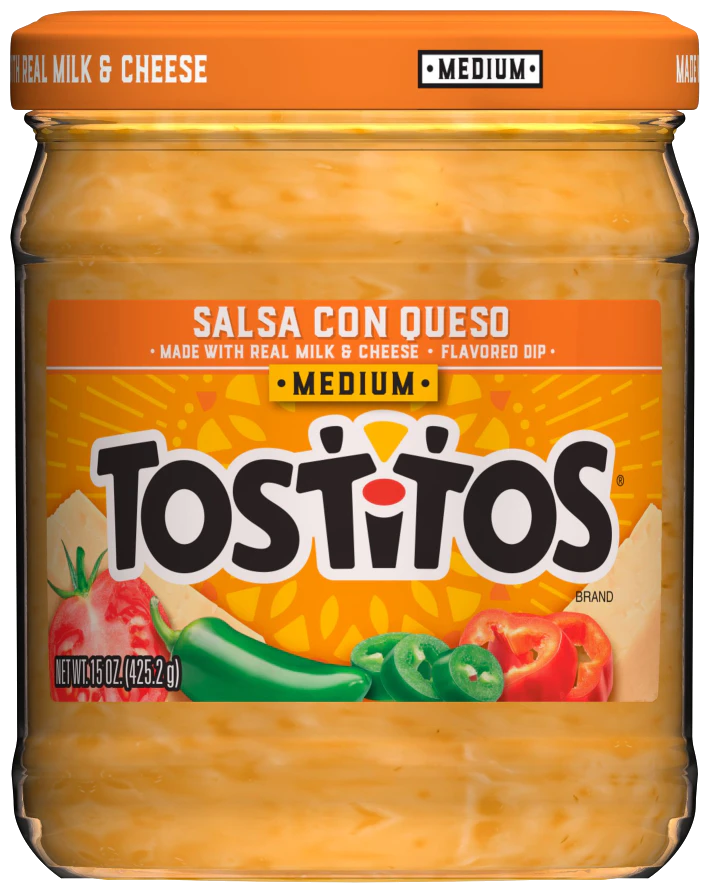
Final bundle image
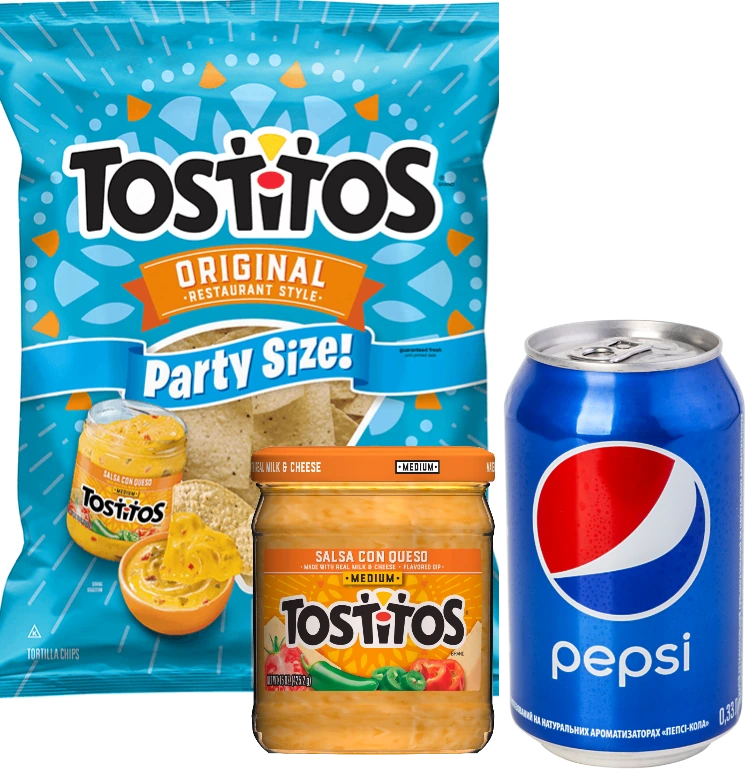
Demo examples: Store names, promotions, and prices are for demonstration purposes only. Not actual retail offers.
Before and after
Create the product composition once, then reuse it across flyers, signs, and other promotions instead of resizing and aligning every item again.
Same Product Multipack
Repeat a single product image to create quantity promotions, multipacks, and multi-item visuals.
Before
After
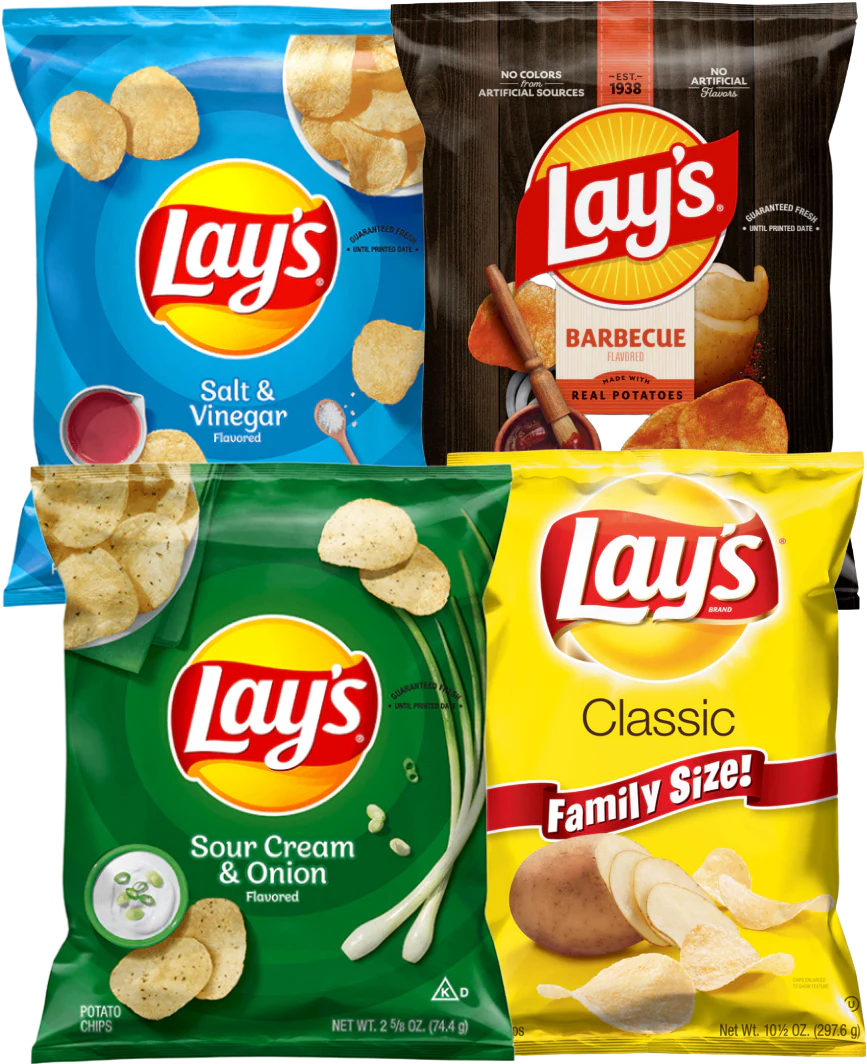
Product Variants
Bring flavors, sizes, colors, or package variants together in one clean product-family image.
Before
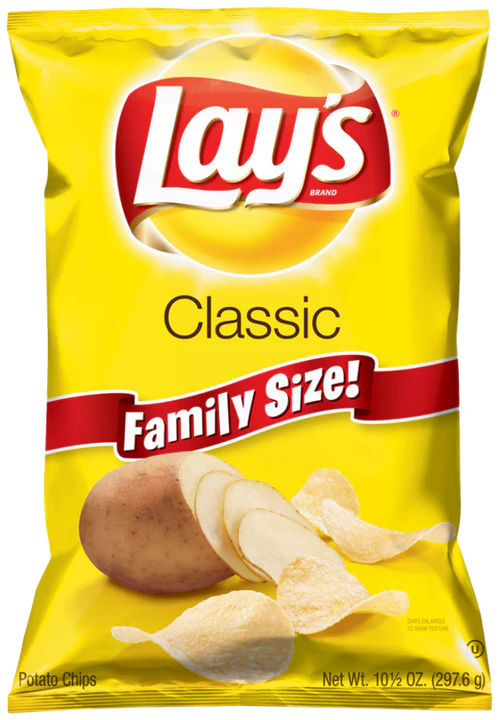
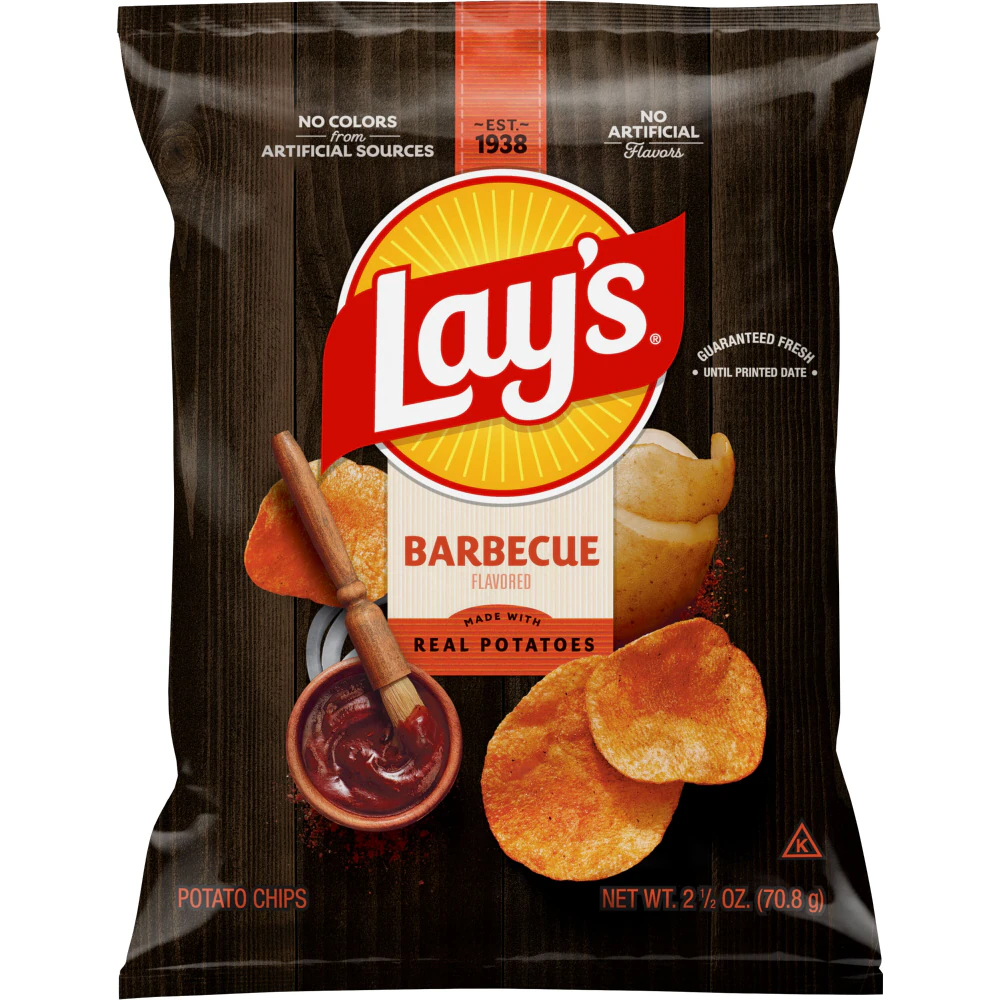
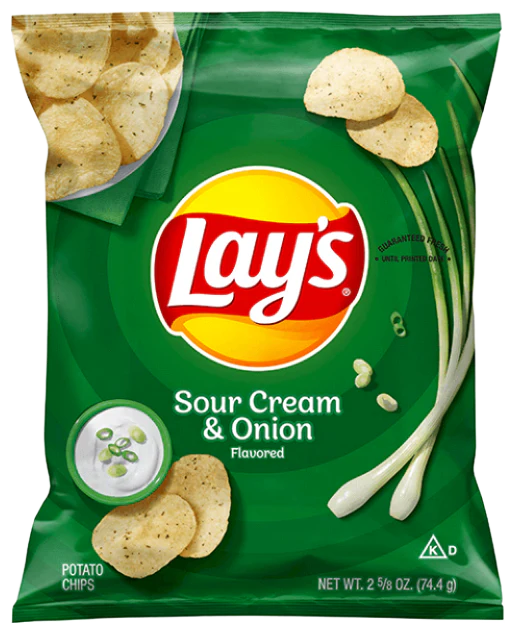
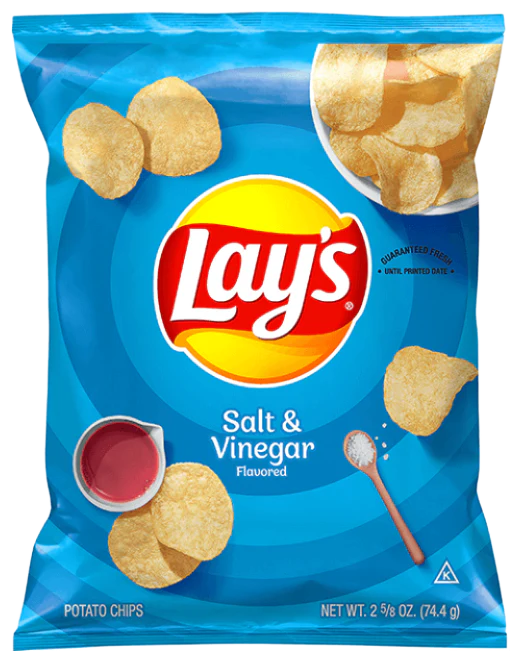
After
Natural Product Combo
Bring complementary products together for combo deals, meal deals, and cross-sell promotions.
Before
After
More compositions
Different categories, visual priorities, quantities and package shapes can all become one reusable product image.
Cross-category Promotion
Combine products from completely different categories into one promotional visual.
Before
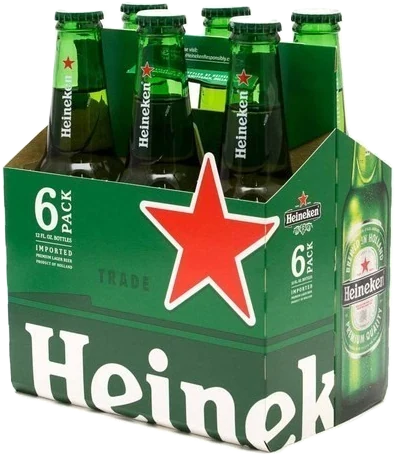
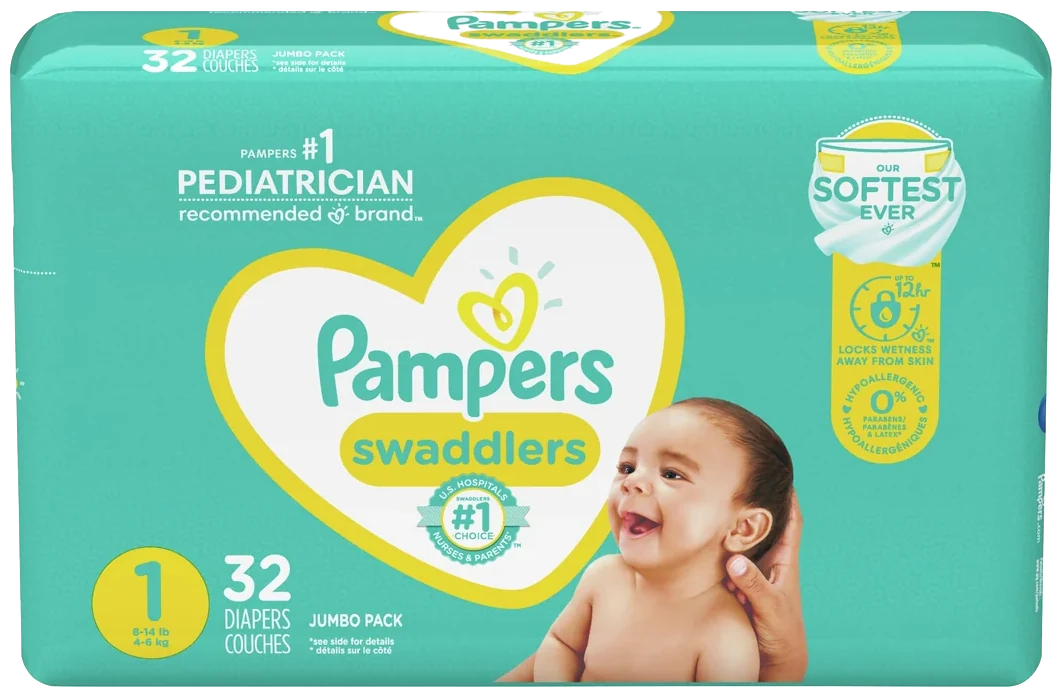
After
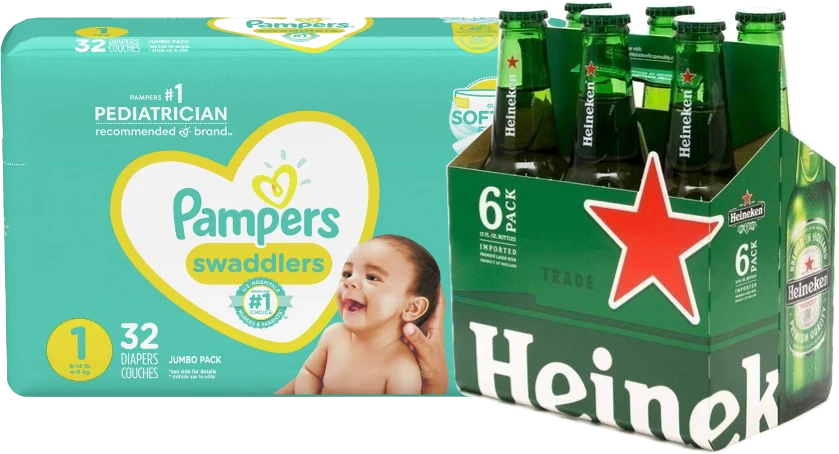
Hero + Supporting Products
Use one large hero product with a smaller supporting item to create a clear visual hierarchy.
Before
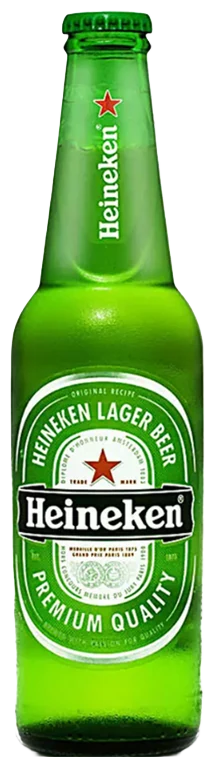
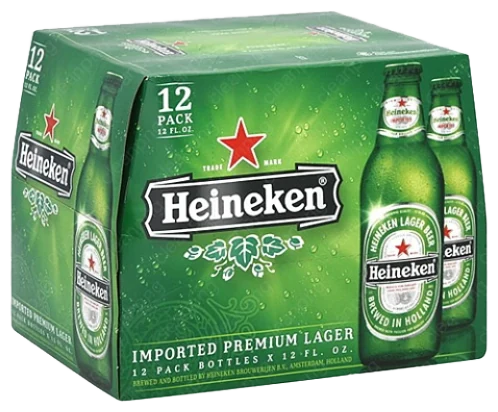
After
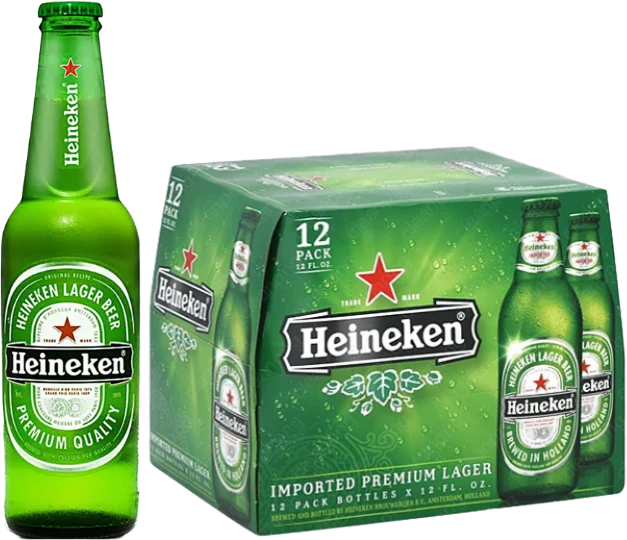
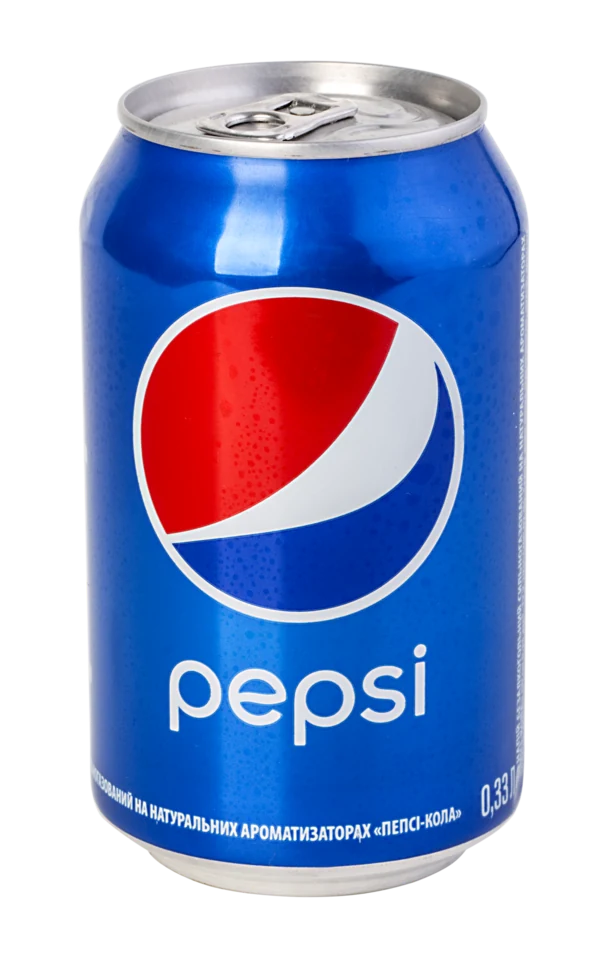
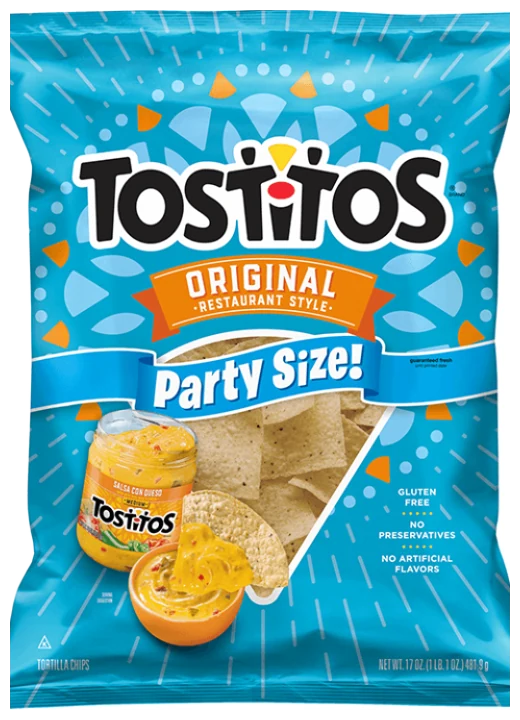
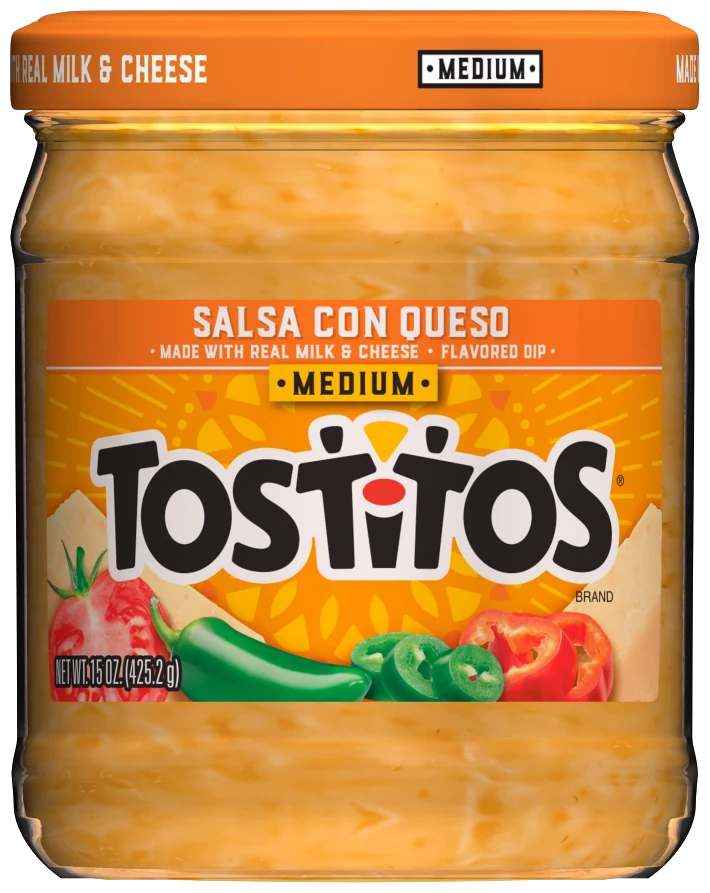
Mixed Quantity
Repeat several sources in different quantities for a more detailed quantity promotion.
Before
After
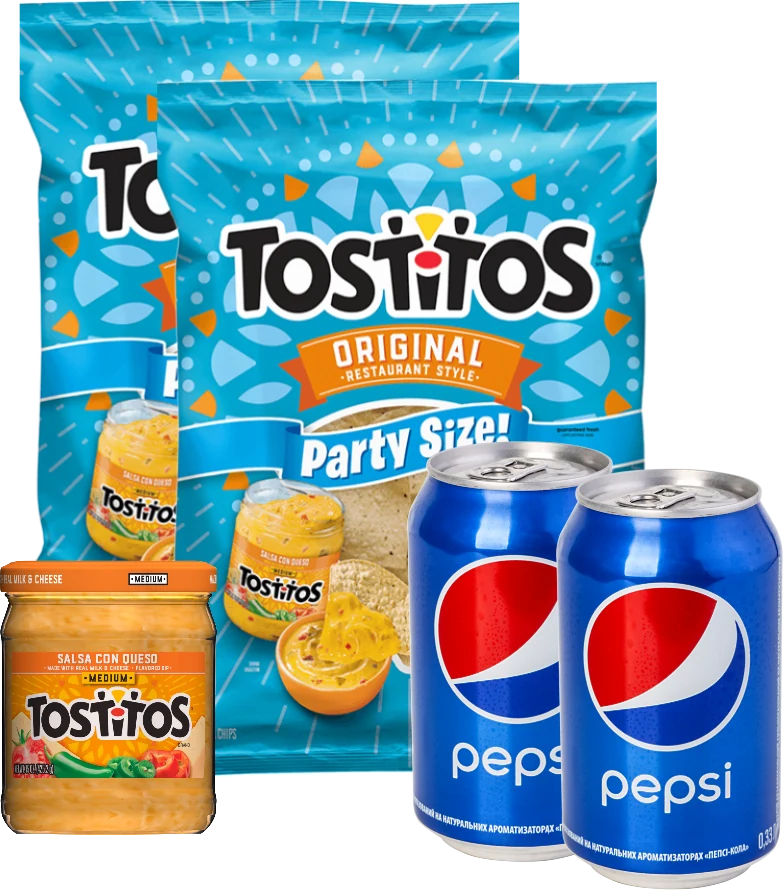
Mixed Size / Shape
Compose products with very different heights, proportions, and package shapes.
Before
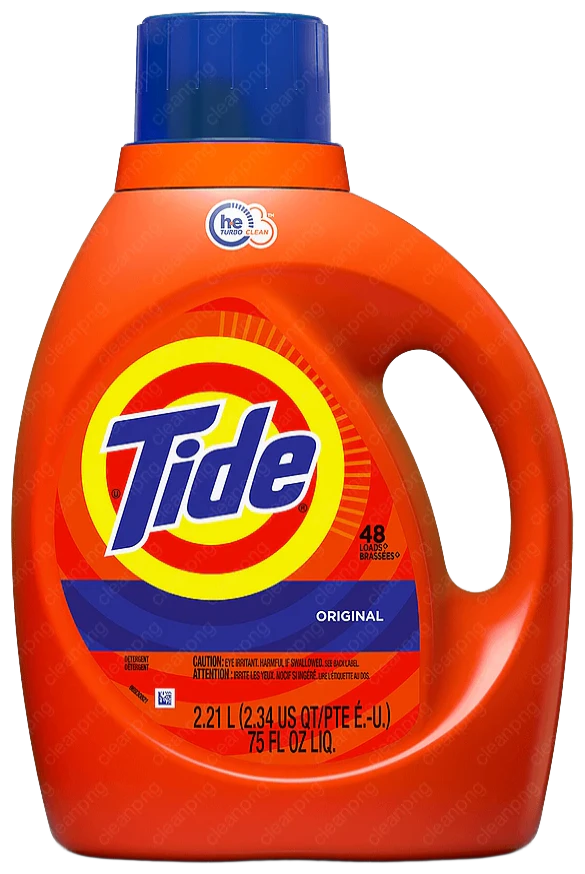
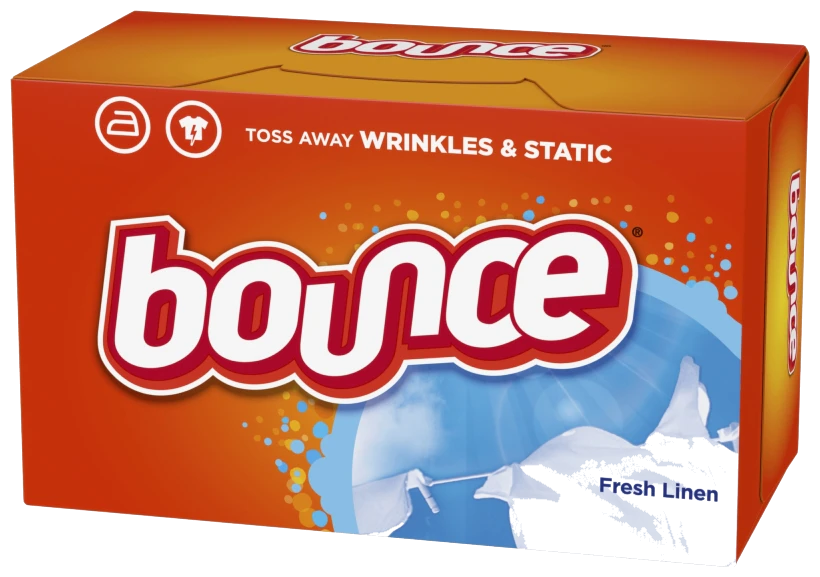
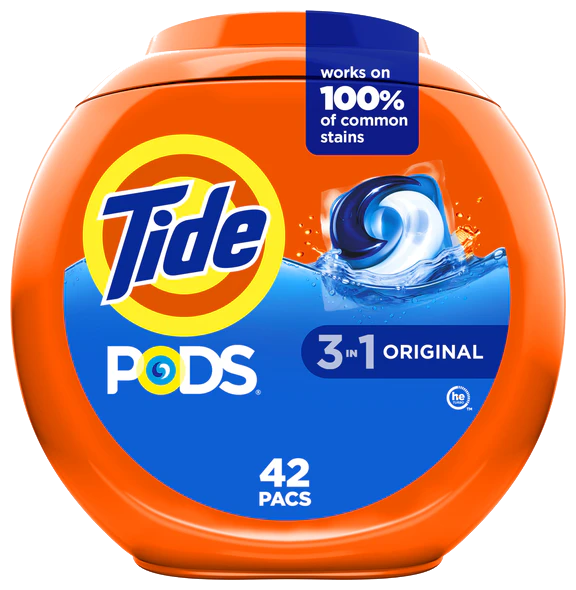
After
How it works
Upload product images or choose them from your product library.
Remove backgrounds, repeat products when needed, and arrange everything into one balanced composition.
Export a transparent PNG for flyers, sale signs, digital promotions, and social graphics.
4 different products maximum · 8 total items on the canvas
Focused product-image workflow
Bundle Composer focuses on one job: turning multiple product images into one clean, reusable visual. Download it once, then place it in flyers, sale signs, digital promotions, or social graphics whenever you need it.
Arrange products into a balanced starting composition without rebuilding the layout from scratch.
Prepare clean cutouts at the source level so repeated products share the same processed result.
Create multipacks and quantity visuals while keeping each source product easy to manage.
Download a clean asset that can be placed over another promotional design.
Reopen a saved bundle, refine the layout, and replace its generated image when ready.
Questions
A product bundle image combines multiple product photos into one visual asset for combo deals, multipacks, flyers, sale signs, and social promotions.
You can add up to four different product images and place up to eight total items in one composition. Repeating a product creates another item without using another product slot.
Yes. You can remove a source image background before arranging it. Background removal uses your StorePromoKit AI credits, while copies of the same source share the processed result.
Yes. Bundle images are saved to your StorePromoKit account. Reopen a saved bundle to refine it and replace the current generated image, or duplicate the bundle before exploring a different layout.
Bundle Composer exports a transparent PNG with a maximum dimension of 1080 pixels, ready to place in another promotional design.
Yes. An account is required because bundle drafts, source snapshots, and generated images are private assets saved for your business.
Yes. Generate a bundle image in Bundle Composer to save it to your Media Library. In your promotion’s Images tab, open Find an image for the item and select the bundle image from Media Library.
Ready to compose?
Turn separate product photos into one clean promotional visual.
Create a Bundle ImageStorePromoKit account required · Background removal uses AI credits