
Social Flyers
How to Create Social Media Posts for Your Store’s Weekly Deals
Start with the same offer details you use in store. Choose a few deals shoppers can read on a phone, export the right image format, and post the file or share a link through your own account.
StorePromoKit Updated
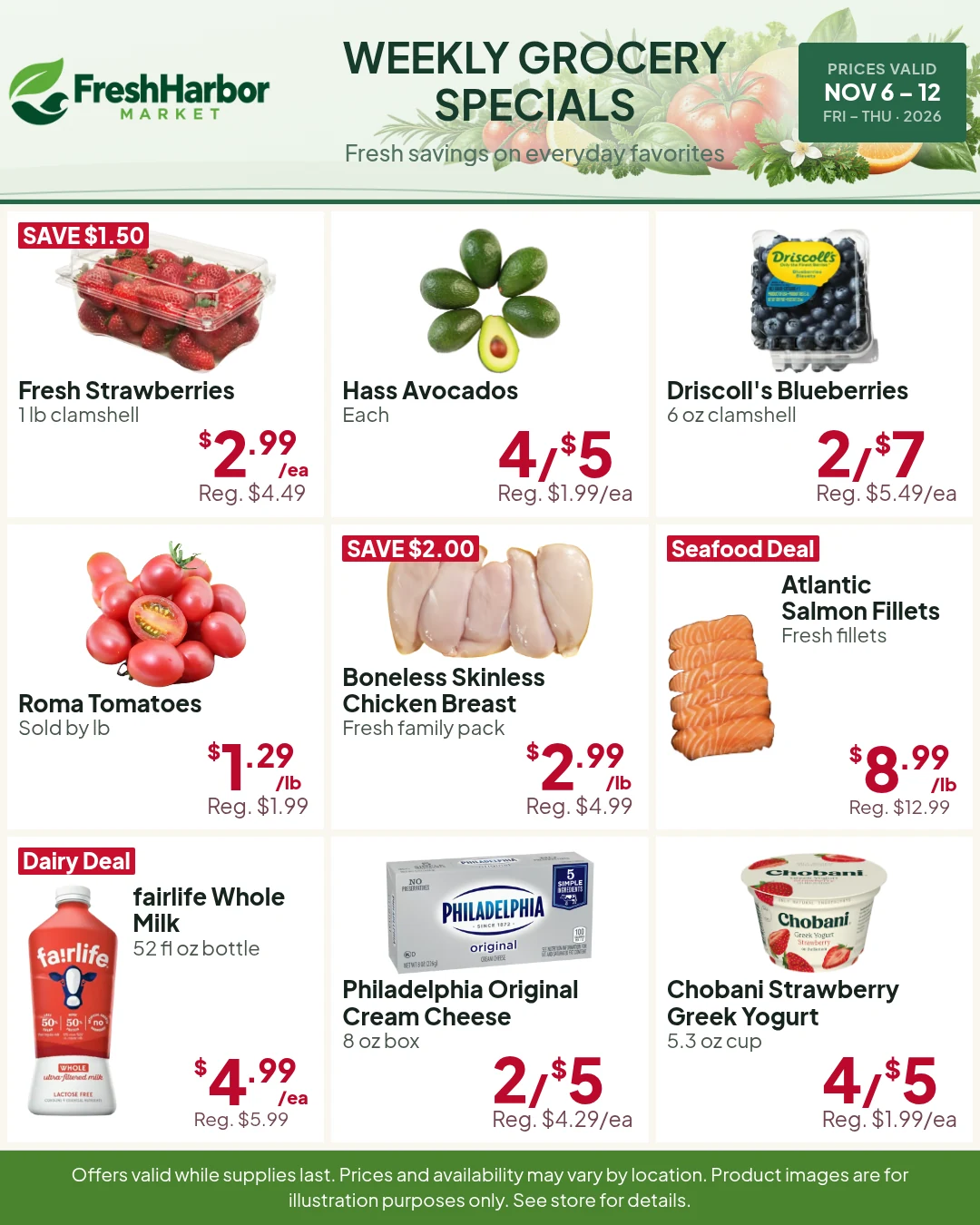
Demo examples: Store names, promotions, and prices are for demonstration purposes only. Not actual retail offers.
Choose Which Weekly Deals to Feature
Start with the promotion dates, location, and approved sale prices. Pick offers you can explain in a short caption and that have enough stock for the advertised period. Keep the pack size, selling unit, and any quantity limits with each item. A small set of readable offers works well when shoppers are seeing the image on a phone.
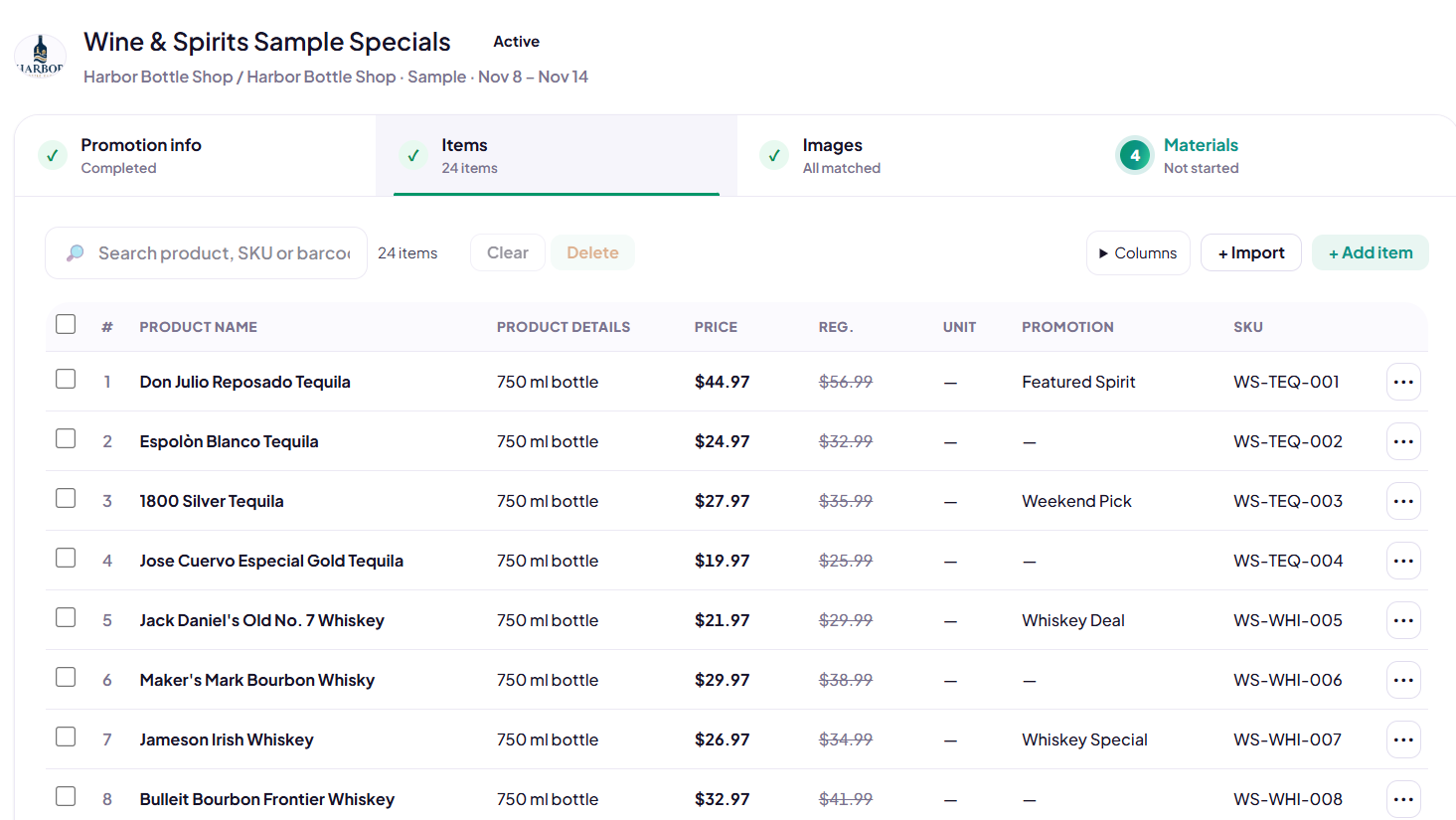
If you already have a StorePromoKit Campaign, use its Items and matched Images as the starting point. Recheck any details that changed since the print proof. For a first campaign, import your sale list or add the offers you need, then attach a photo that shows the actual package or variety. Keep the same prices across the versions you publish.
Choose Between Feed Portrait and Story
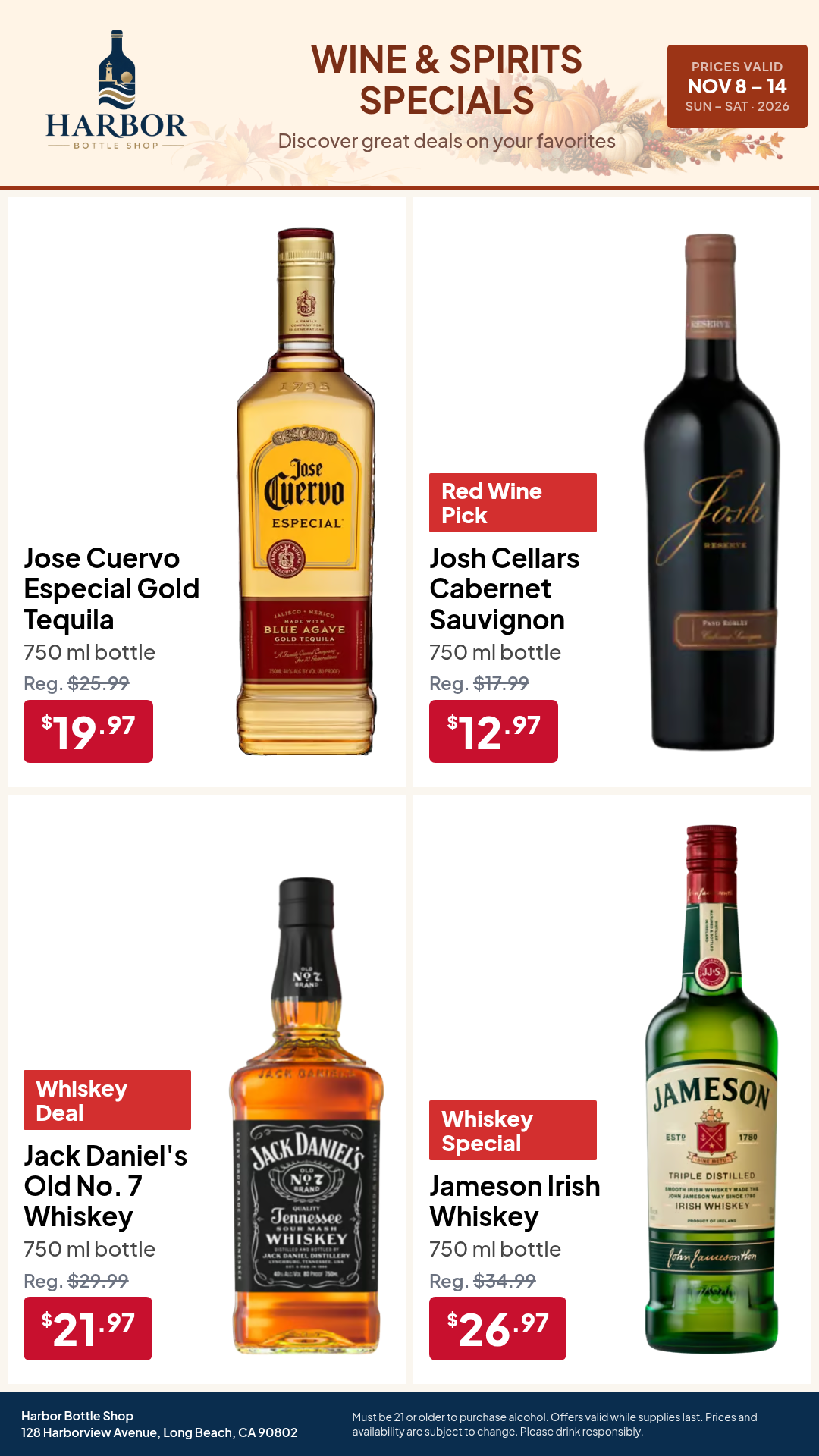
Feed Portrait (1080 × 1350) is a useful starting point for a group of deals meant to stay on your page or profile. Story (1080 × 1920) is a tall format for a quick message, such as a weekend special or a reminder that a promotion ends tonight. A separate Story proof gives you room to keep prices away from interface controls and screen edges.
Review the title, price, unit, and dates on a phone before posting. Avoid stretching one export to fit a different aspect ratio. The Harbor Bottle Shop Story below is a separate example of the tall format. The FreshHarbor Feed example above shows how several grocery deals can share a portrait image.
Make Grocery Sale Posts for Facebook
Use a Feed image that shows the main offers and your store name. Download the PNG, open your store’s Facebook Page, and upload the image to a post. Put the store location, valid dates, and key offer terms in the caption. If several images form the weekly set, review their order in the post preview.
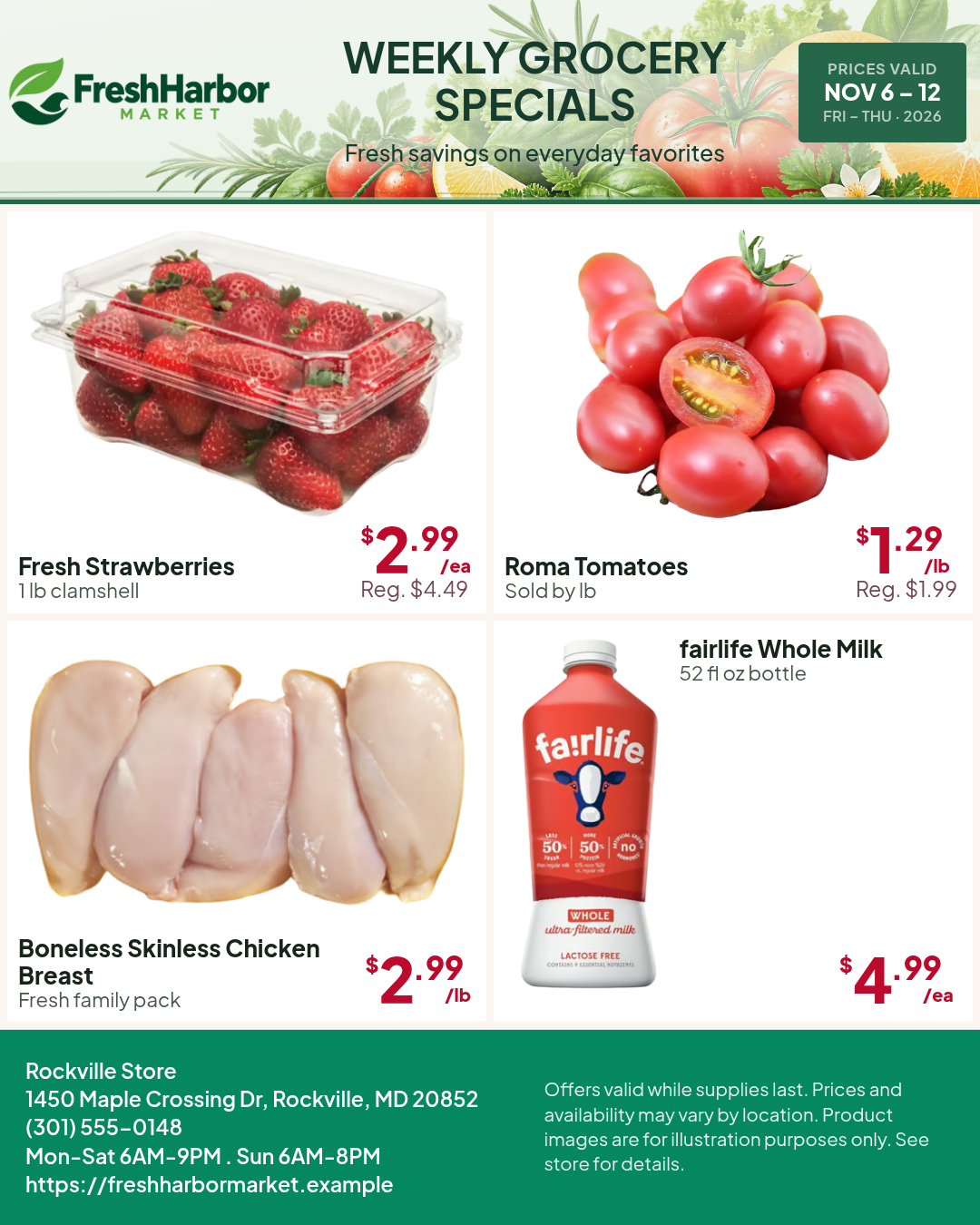
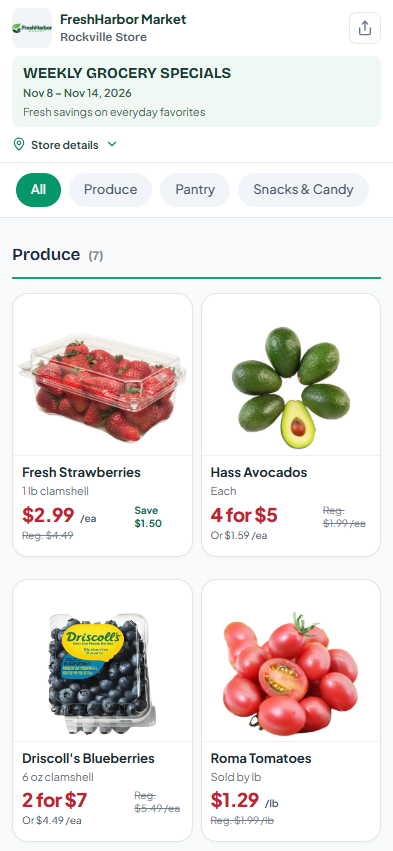
For a compact grocery example, a four-deal image can give strawberries, tomatoes, chicken, and milk clear individual price areas. In the FreshHarbor example, strawberries are $2.99 each and tomatoes are $1.29 per pound. Use both selling units in the caption if you highlight both prices. Read the thumbnail and full image before publishing. If you also have a published Digital Flyer, add its link so shoppers can browse the wider deal list.
Prepare Instagram Feed and Story Promotions
For a Feed post, upload the Feed Portrait PNG to Instagram, check the crop, and write a caption with the store and offer dates. For a Story, upload the separate Story PNG and check the top and bottom of the frame. Keep text and prices clear of the areas you plan to use for Instagram’s native overlays.
Give each output a specific job. The Feed image can show several weekly offers, while a Story can highlight one category or the last day of a deal. Check the preview inside Instagram before sharing. StorePromoKit exports the creative. You publish it through your own social account.
If the same deal runs on Facebook and Instagram, keep the offer wording and valid dates consistent, then check the preview on each platform. Write the offer details in the caption too so a shopper can find them without reading the graphic. Store a dated copy of the approved artwork alongside the caption so the next person can replace it when prices change.
Share Weekly Specials on WhatsApp
For a quick share, attach a readable PNG to a chat or use a Story-sized image for a Status update. Include the store name, offer dates, and where the deal applies in the image or accompanying message. Check the preview on a phone and open the image once to make sure the main price is still legible.
For a longer list, share the published Digital Flyer URL so shoppers can open a mobile-friendly page and browse the offers. A PNG captures the version you downloaded. If the sale changes, download and send a new image. Test a published link before sending it to customers.
Use a Product Poster for a Single Featured Deal
Choose a product poster when one item needs the whole frame. Show its package, a large price, the unit, and a short offer line. Choose a Social Flyer when shoppers should compare several specials together. A campaign can supply the product data for both outputs. Review each version separately before downloading.
For the final proof, check dates, locations, pack sizes, and the first price a shopper sees. Avoid using an old export after a price correction. Save the approved PNGs with their promotion dates so the colleague posting the offers can find the current set.
For a Friday-to-Sunday grocery special, one practical set is a four-deal Feed image, a single-feature Story, and the published link to the full promotion. Share the Feed image at the start, use the Story when the featured offer is still available, and send the link when a customer asks to see all the deals. Check store hours and the last valid day before sending a reminder.
Create a Multi-Product Social Flyer
Open Social Flyer from the Campaign, choose Feed Portrait or Story, and use a layout that gives each offer enough space. Keep similar deals together, such as a small produce group or a group of pantry specials. Make the sale price easy to find and keep the unit beside it. Recheck any multi-buy or per-pound offers after changing the layout.
Preview each image page before finalizing. If shoppers need to zoom to read the prices, use fewer deals per image or split them across additional image pages. Keep the store name and promotion dates visible in every image you plan to share. A shopper may see page two without seeing page one.